
Step One
User runs command to create a virtual environment.


Step Two
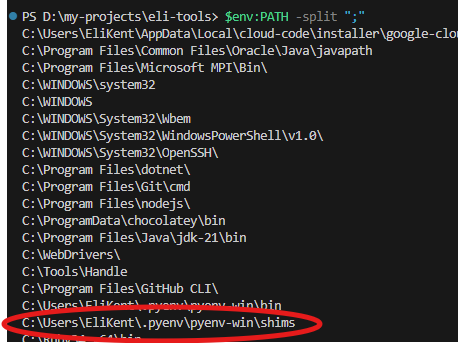
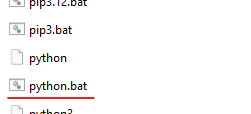
PowerShell resolves python via the PATH and finds python.bat in \.pyenv\pyenv-win\shims\.

Step Three
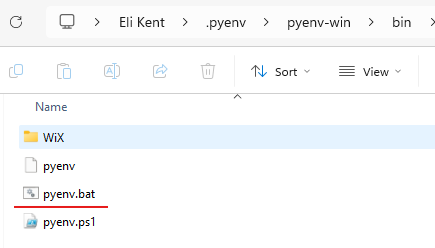
PowerShell asks Windows to start running the shim file python.bat. Windows launches cmd.exe, since .bat files are read by the command processor. From there, the shim calls pyenv, which decides which installed Python version to use. In this case, since no Python version has been set locally or in shell-space, Windows spawns the globally-set pyenv Python version, found in .pyenv\pyenv-win\version. At the end of this step, a new Python process starts—the one chosen by pyenv.


Step Four
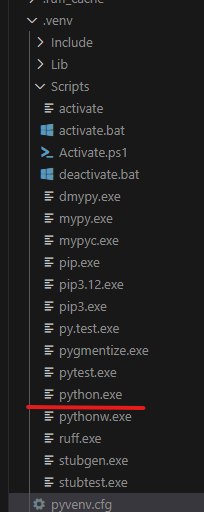
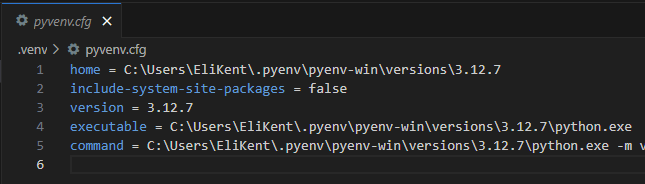
The newly started Python process runs the built-in venv module (from the original python -m venv .venv command). It creates a folder named .venv, copies or links a small Python executable into it, adds the usual Scripts/ and Lib/ subfolders, and writes a small configuration file named pyenv.cfg. That file tells future Python runs where to find the full Python executable.

Step Five
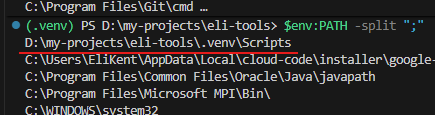
When you later activate the environment via .\.venv\Scripts\activate, the shell simply updates its PATH so that .venv\Scripts appears first. Now, any time you type python, the shell finds the copy inside .venv before anything else. From that point on, every Python command uses the isolated environment you just created.

Related Posts
tags: #Python, #PowerShell, #applied-learning, #fundamentals